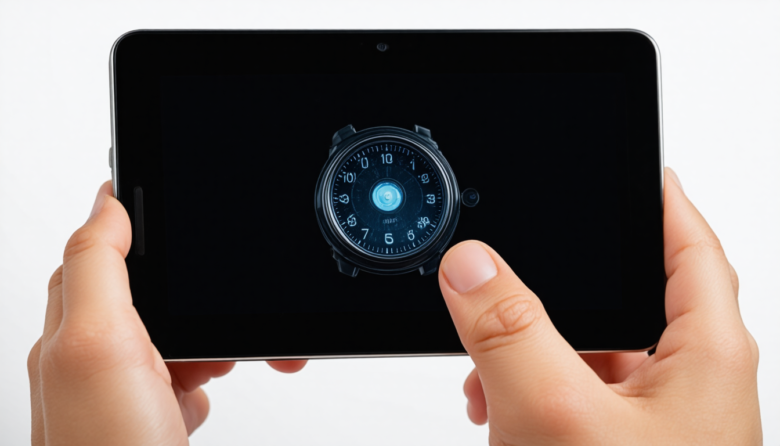
In our tech-driven world of 2026, touchscreens have become an integral part of daily life. From smartphones and tablets to smart home devices and infotainment systems in cars, touchscreens facilitate seamless interaction with technology. However, many users face a frustrating issue: their touchscreen stops responding randomly. Whether you’re in the middle of an important task or simply trying to scroll through your social media feed, this problem can be incredibly disruptive.
Imagine trying to send an urgent message, only to find your phone’s screen frozen and unresponsive. Or picture yourself stuck in traffic, unable to adjust your car’s navigation system because the touchscreen isn’t working. These scenarios are not just inconvenient—they can have real-life implications on productivity and safety.
Fortunately, there’s no need to worry. This guide offers actionable, step-by-step solutions to troubleshoot and fix touchscreen responsiveness issues. Our strategies are designed to be relevant now and in the future, taking into account the technological advancements and common issues of 2026.
Why This Problem Happens / Why This Topic Matters
- Software Glitches: Updates or bugs can cause temporary malfunctions.
- Hardware Wear and Tear: Over time, components can degrade, affecting performance.
- Environmental Factors: Temperature extremes and humidity can impact touchscreen sensitivity.
- Screen Protector Issues: Some protectors may interfere with touch sensitivity.
- App Conflicts: Conflicting applications can overload the system, causing delays.
- Memory Overload: Running too many apps simultaneously might cause the screen to freeze.
- Calibration Errors: Incorrect calibration can lead to touch recognition issues.
Understanding these causes helps in applying the right solution, ensuring your devices function smoothly and efficiently.
Step-by-Step Core Guide / Main Solutions
Check for Software Updates
Updating your device can resolve bugs and improve performance.
- Why it Works: Updates often fix known issues and enhance system stability.
- Instructions: Go to Settings > System > Software Update. Install any available updates.
Pro Tip: Enable automatic updates to keep your device up-to-date without manual checks.
Restart Your Device
A simple restart can clear temporary glitches.
- Why it Works: Restarting refreshes the system and clears temporary cache.
- Instructions: Hold the power button and select ‘Restart’ from the menu.
Pro Tip: Schedule regular restarts to maintain optimal performance.
Remove and Reapply Screen Protector
Ensure your screen protector isn’t the issue.
- Why it Works: Some protectors can impair touch sensitivity.
- Instructions: Carefully remove the protector, clean the screen, and reapply or replace it.
Pro Tip: Use high-quality screen protectors designed for your specific device model.
Free Up Memory Space
Clear unnecessary files and apps.
- Why it Works: More free memory allows for smoother operation.
- Instructions: Use built-in tools like “Device Care” on Android or “Storage Management” on iOS to clean up space.
Pro Tip: Regularly backup and delete old files to keep your device clutter-free.
Calibrate Your Touchscreen
Correct touchscreen calibration issues.
- Why it Works: Calibration aligns touch sensitivity with screen display.
- Instructions: Use calibration apps available on app stores to adjust settings.
Pro Tip: Perform calibration in a controlled environment to ensure accuracy.
Check for App Conflicts
Identify and resolve conflicting apps.
- Why it Works: Reducing conflicts avoids system overload.
- Instructions: Go to Settings > Apps, and disable apps running in the background.
Pro Tip: Regularly update apps to minimize conflicts and enhance compatibility.
Inspect for Physical Damage
Look for visible signs of wear.
- Why it Works: Physical damage can impair touchscreen function.
- Instructions: Examine the screen for cracks or damage and seek professional repair if needed.
Pro Tip: Use protective cases to prevent future damage.
Optimize Environmental Conditions
Avoid extreme conditions.
- Why it Works: Optimal conditions ensure consistent performance.
- Instructions: Keep devices away from heat, cold, and moisture.
Pro Tip: Use desiccants in storage areas to control humidity levels.
Advanced Optimization / Expert Tips
Beyond basic troubleshooting, consider these advanced strategies:
- Use Diagnostic Apps: Leverage specialized apps that provide detailed diagnostics and solutions for touchscreen issues.
- Regular Maintenance Checks: Schedule periodic professional maintenance to preemptively identify and resolve potential problems.
- Invest in Quality Accessories: Use manufacturer-recommended accessories to ensure compatibility and minimize issues.
These advanced techniques not only solve current problems but also prevent future occurrences, ensuring long-term device health.
Long-Term Maintenance / Best Practices
- Regularly update software and apps.
- Clean your screen weekly with a microfiber cloth.
- Limit exposure to extreme temperatures.
- Use quality screen protectors and casings.
- Perform monthly diagnostics and calibration.
Frequently Asked Questions
Why does my touchscreen only stop responding intermittently?
Intermittent issues are often due to software glitches or temporary memory overload. Ensuring your device is updated and regularly restarted can help mitigate these problems.
Can a damaged screen protector affect touch sensitivity?
Yes, a damaged or improperly applied screen protector can significantly affect touchscreen responsiveness. It’s recommended to replace it with a high-quality one.
What should I do if my touchscreen is still unresponsive after trying these solutions?
If the problem persists, it may be a hardware issue. Consult with a professional technician for further diagnosis and repair.
Are there apps that can help diagnose touchscreen problems?
Yes, there are several diagnostic apps available on app stores that can help identify and troubleshoot touchscreen issues.
How often should I calibrate my touchscreen?
Calibration should be done whenever you notice a decline in touch accuracy or after changing the screen protector. Regular checks every few months are advisable.
Conclusion
Dealing with an unresponsive touchscreen can be frustrating, but with the right steps, you can restore your device to optimal functionality. By understanding the root causes and applying these comprehensive solutions, you ensure not only immediate relief but also long-term reliability. Embrace these practices, and enjoy a seamless interaction with your technology, now and in the future.