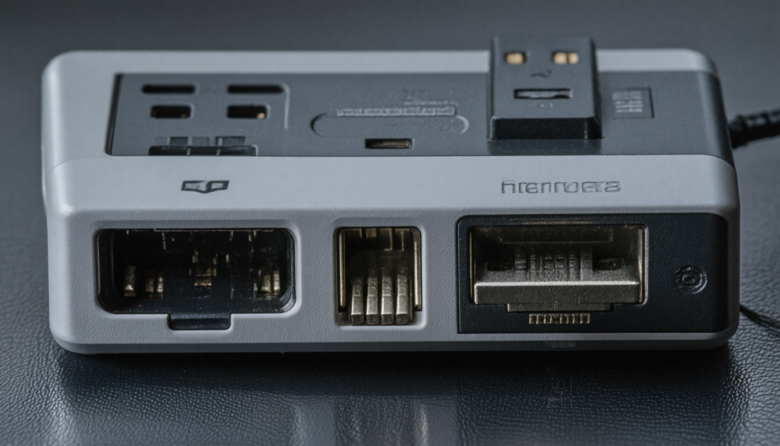
In today’s tech-driven world, USB devices are indispensable, connecting everything from external hard drives to printers and smartphones. However, encountering the dreaded “USB Device Not Recognized” error can be frustrating, especially when you’re in the middle of a crucial task. This problem is not only a common annoyance but can also lead to data loss or hardware damage if not addressed promptly. Understanding the reasons behind these issues and knowing how to fix them can save you time and stress.
Imagine you’re about to deliver a presentation, and your USB drive suddenly stops working. Or perhaps you’re transferring critical files to your external hard drive, and it suddenly becomes unresponsive. These real-life scenarios can disrupt productivity and cause panic. Fortunately, there are actionable, step-by-step solutions to resolve these issues and keep your USB devices functioning smoothly.
In this guide, we’ll explore why USB recognition problems occur and provide you with a comprehensive method to troubleshoot and resolve these issues. Whether you’re using the latest laptop models of 2026 or dealing with older devices, the solutions we provide are future-proof and applicable for years to come.
Why This Problem Happens / Why This Topic Matters
- Driver Issues: Outdated or corrupted drivers can prevent your operating system from recognizing USB devices.
- Power Supply Problems: Insufficient power supply to USB ports can lead to connectivity issues.
- Hardware Malfunctions: Physical damage or defects in USB ports or cables can impede connectivity.
- Operating System Glitches: Bugs or errors in your OS can affect USB functionality.
- Device Compatibility: Some devices may not be fully compatible with certain operating systems or hardware configurations.
Understanding these root causes helps in effectively diagnosing and addressing USB issues. With an authority-driven approach, we aim to provide solutions that not only work but also enhance your overall tech management skills.
Step-by-Step Core Guide / Main Solutions
Update USB Drivers
Updating your USB drivers can resolve recognition issues.
- Why It Works: Ensures compatibility with the latest hardware and software updates.
- Instructions: Open ‘Device Manager’, locate ‘Universal Serial Bus controllers’, right-click on the device, and select ‘Update driver’.
Pro Tip: Use driver update software for automated updates across all devices.
Check Power Management Settings
USB power management settings can affect device performance.
- Why It Works: Adjusting settings can supply consistent power to USB ports.
- Instructions: In ‘Device Manager’, right-click on your USB Root Hub, go to ‘Properties’, and disable ‘Allow the computer to turn off this device to save power’.
Inspect USB Ports and Cables
Physical inspections can identify visible issues.
- Why It Works: Ensures that connections are secure and undamaged.
- Instructions: Check for bent pins or debris in ports and inspect cables for wear and tear.
Restart Your Computer
Sometimes a simple restart can solve complex issues.
- Why It Works: Clears temporary glitches and refreshes system processes.
- Instructions: Save all work and restart your machine.
Try Different USB Ports
Different ports may have varying functionalities.
- Why It Works: Identifies faulty ports or bandwidth limitations.
- Instructions: Unplug the device and try connecting it to another port.
Disable USB Selective Suspend
This feature could interfere with device recognition.
- Why It Works: Keeps USB ports active even in power-saving mode.
- Instructions: Go to ‘Control Panel’, navigate to ‘Power Options’, and disable USB Selective Suspend under advanced settings.
Reinstall USB Controllers
Reinstalling can solve issues caused by corrupted controllers.
- Why It Works: Refreshes USB controller configuration.
- Instructions: In ‘Device Manager’, uninstall USB controllers, then restart your computer to reinstall them automatically.
Check for System Updates
Ensuring your system is up-to-date can solve compatibility issues.
- Why It Works: Updates often include bug fixes for USB-related issues.
- Instructions: Navigate to ‘Settings’, then ‘Update & Security’, and install any available updates.
Use a USB Hub
A powered USB hub can resolve power issues.
- Why It Works: Provides additional power and can improve connectivity.
- Instructions: Connect your device through a powered USB hub.
Pro Tip: Invest in a high-quality USB hub for better long-term performance.
Advanced Optimization / Expert Tips
- Regularly Update Firmware: For devices like printers and cameras, ensure firmware is current to avoid compatibility issues.
- Invest in Quality Cables: Use high-standard cables to prevent frequent malfunctions.
- Enable BIOS Support for USB: Check your BIOS settings to ensure USB support is enabled, especially for boot-related devices.
Long-Term Maintenance / Best Practices
- Regularly clean USB ports to prevent dust accumulation.
- Keep your system and drivers updated.
- Use surge protectors to safeguard against power fluctuations.
- Avoid overloading USB ports with multiple devices.
- Periodically check cables for damage.
Frequently Asked Questions
Why does my USB device work on one computer but not another?
This could be due to differences in driver versions, power settings, or hardware compatibility between the two systems.
Can a faulty USB port damage my device?
Yes, a malfunctioning port can potentially damage your device or lead to data corruption.
What should I do if my device is still not recognized after trying all solutions?
Consider consulting with a professional technician or contacting the device manufacturer for further assistance.
Is it safe to use a USB hub for all my devices?
Yes, but ensure the hub is powered and of high quality to manage multiple device connections effectively.
How often should I update my drivers?
Check for driver updates at least once a month or whenever you install new hardware.
Conclusion
By addressing USB recognition issues with the right strategies, you can enhance your tech experience and prevent future disruptions. Regular maintenance and proactive measures ensure your devices remain functional and efficient. Embrace these practices to enjoy seamless connectivity and boost your productivity in the ever-evolving digital landscape.